Keyboard Shortcuts
| Shortcut | Action |
| Ctrl ⇧ a | Toggle advanced mode toolbar |
| Ctrl = | Zoom in |
| Ctrl - | Zoom out |
| Ctrl i | Choose a video to import frames for annotation |
| Ctrl u | Choose a directory to load images from |
| Ctrl r | Change the default annotation directory |
| Ctrl s | Save |
| Crtl d | Duplicate the selected label and bounding box |
| Ctrl t | Open machine learning interface |
| space | Flag the current image as verified |
| w | Create a new bounding box |
| d | Next image |
| a | Previous Image |
| delete | Delete the selected bounding box |
| ↑→↓← | Move the selected bounding box |
Annotating Images
Importing Video Frames
On the BEAGLES menu bar use File → Import Video Frames
or press Ctrl i.
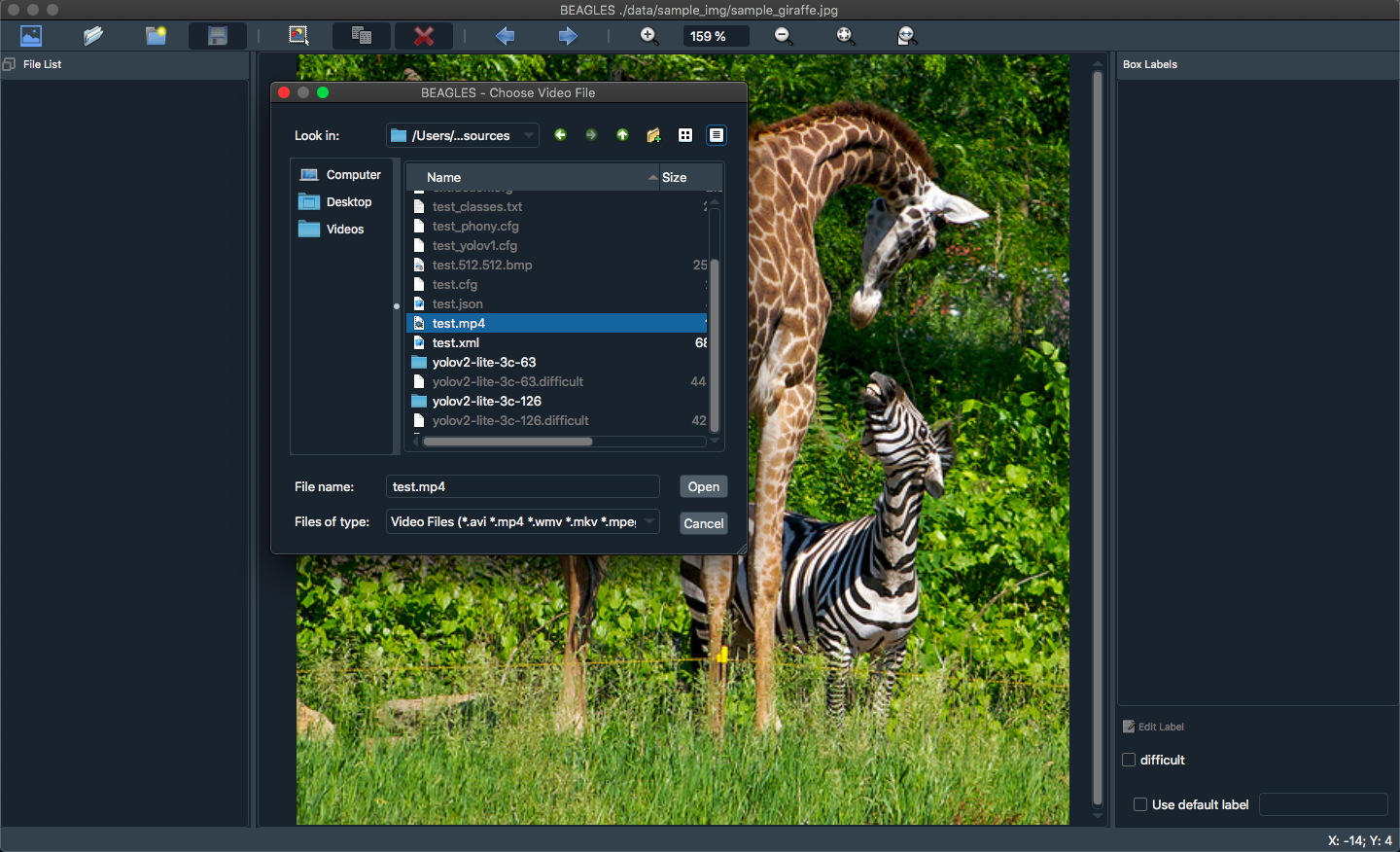
This will import video frames to data/rawframes/test/ using ffmpeg.
Training a Model
Machine Learning Dialog
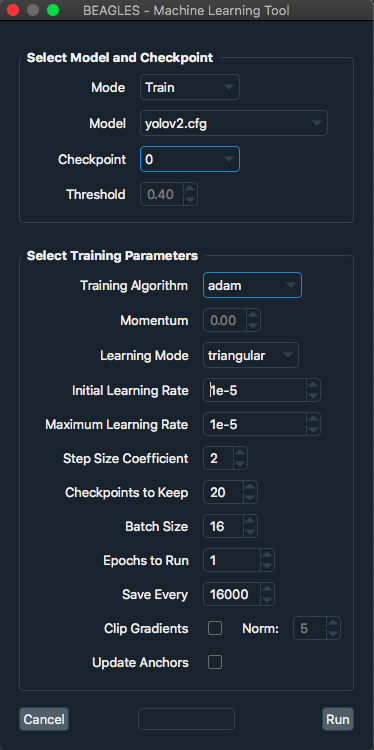
About to train a YOLOv2 model.
Monitoring Progress
On the BEAGLES menu bar use Machine Learning → Visualize Model.
This will open TensorBoard in the default web browser for your system.
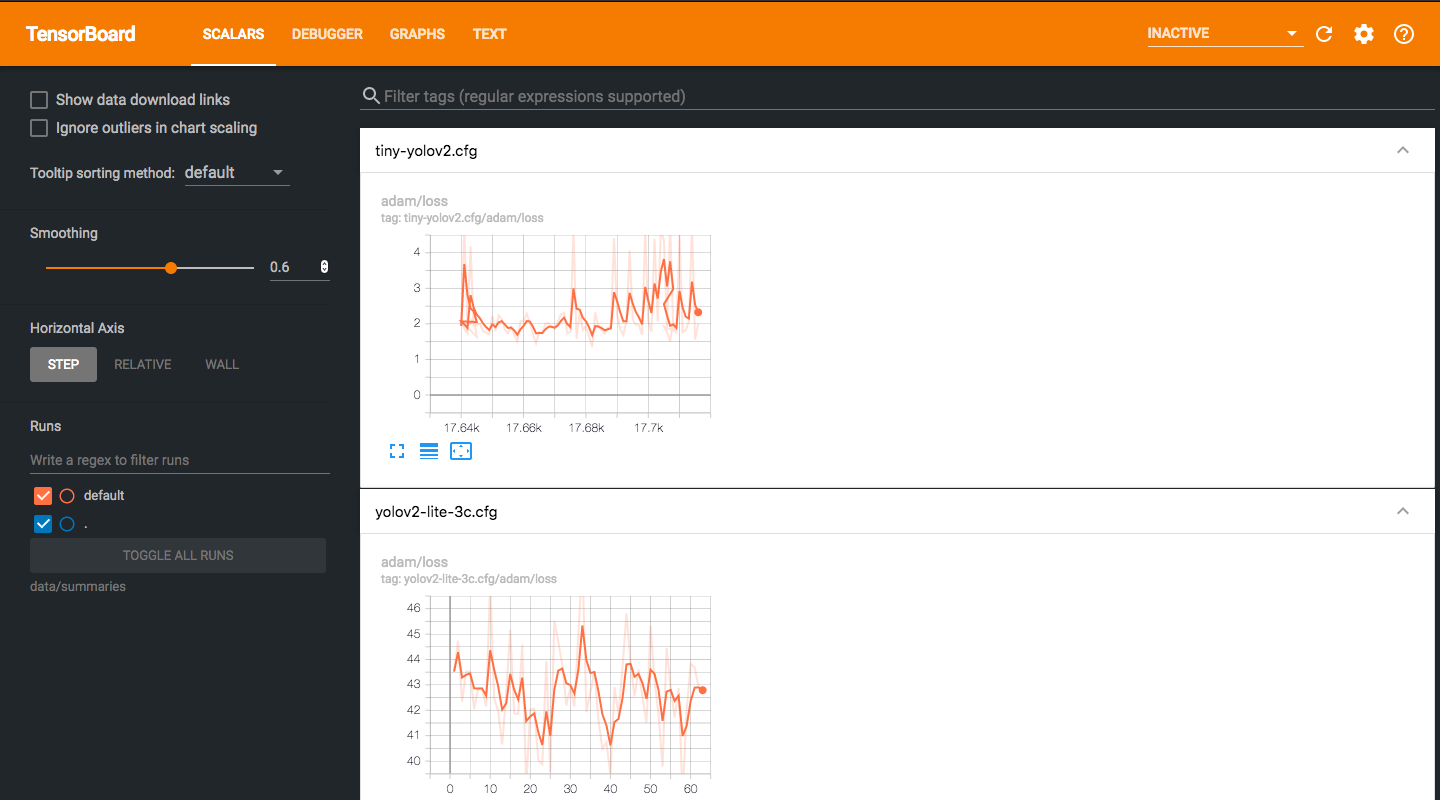
Or just navigate to: http://localhost:6006
Recording
Tiled Captures with OBS
Add camera sources to the scene
Calculate the number of tiles \(T\)
\[T=\left\lceil \sqrt{N} \right\rceil^{2}; N = \text{number of cameras}\]Use the Transform menu item to adjust the height and width of each source \(D_{source}\)
\[D_{source} = \frac{D_{total}}{\sqrt{T}}; D_{total} = \text{total record height or width}\]